
Create a campaign
A walkthrough of the form: domain, pages and rules.
A campaign links your pages to a domain and sets the traffic rules. In Campaigns, click Create campaign and fill in the form:
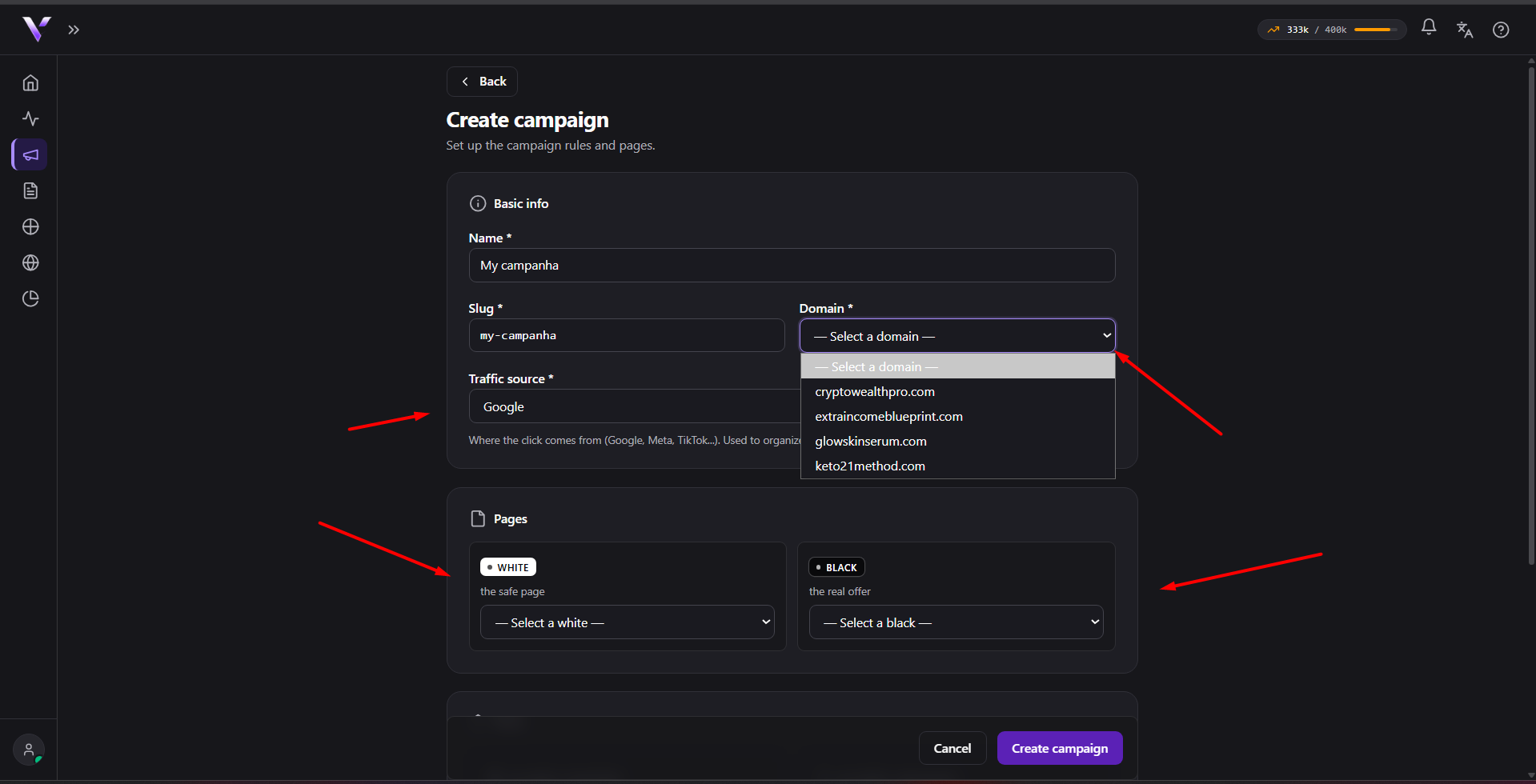
Basic information
- Name: how the campaign appears in your list.
- Slug: the identifier in the URL, generated from the name (you can adjust it before saving). Once created, the slug is immutable: it's already part of the URL that goes in your ads; to change it, duplicate the campaign.
- Domain: the already connected and Active domain that will serve the campaign.
- Traffic source: where the click comes from (Google, YouTube, Meta, TikTok, Kwai...). It's only for organizing your campaigns and the report.
Pages
- White: the safe page.
- Black: the real offer.
Select an already published page for each role. See White and Black. In an A/B test you provide 2+ Black variants instead of a single one; see A/B test.
Rules
They define who can see the offer. Details in Funnel and targeting:
- Allowed countries: visitors outside the list get the White.
- Allowed languages: browser languages outside the list get the White.
- Allowed devices: mobile and/or desktop.
- Block suspicious traffic: automated and untrusted-origin visits.
Click Create campaign to save. Then make sure the pages are published (see Publish and Trash).
The URL to put in the ad
Saving the campaign isn't enough for it to run. Traffic only reaches the offer when the ad points to the campaign's address with the tracking parameter attached. At the top of the campaign's detail page, the URL to put in the ad section already shows both values ready to copy:
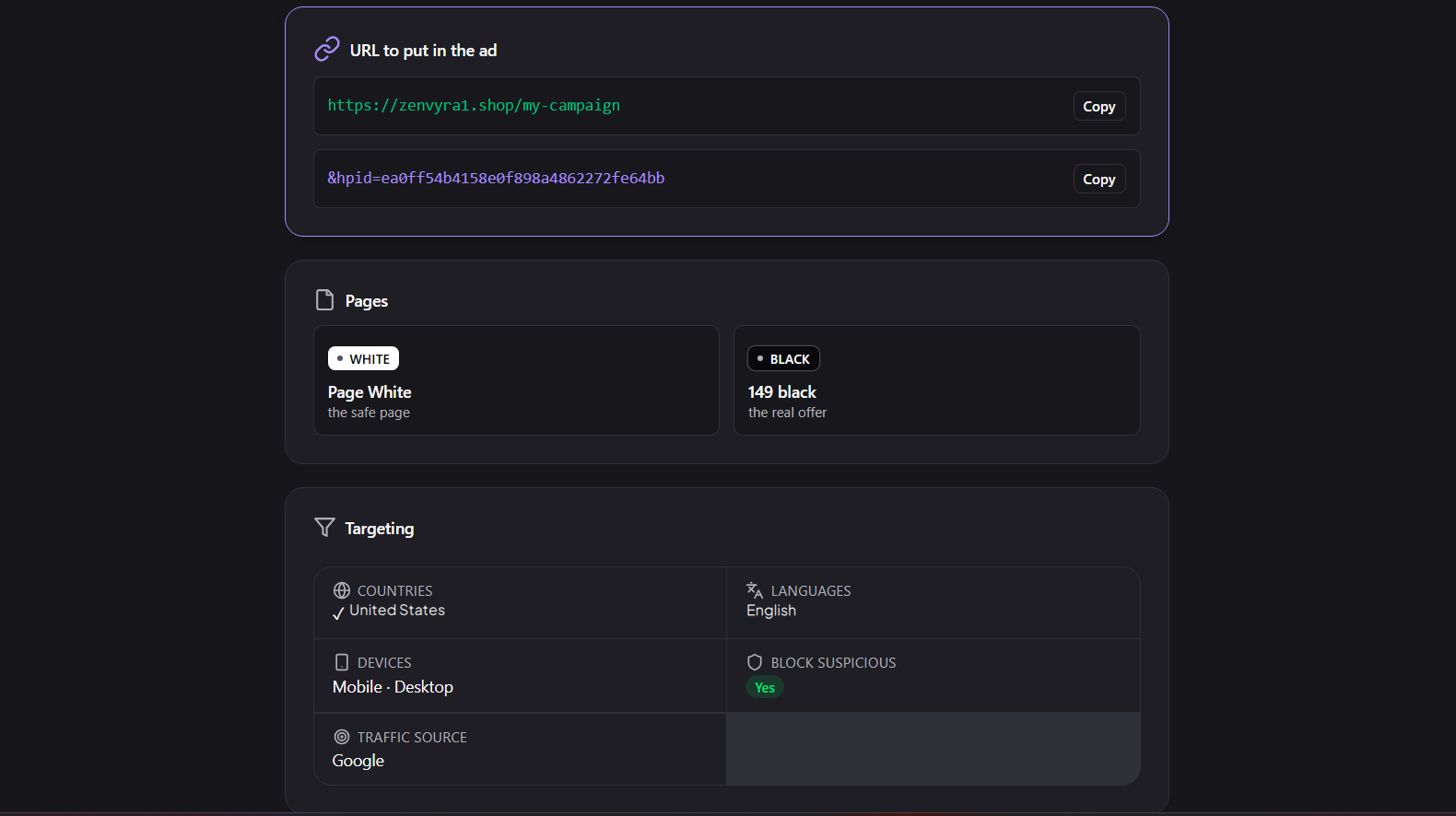
- Final URL: the campaign's link, in the form
https://your-domain.com/your-slug(the campaign's domain plus the slug). It goes in the ad's Final URL field. - Final URL suffix: the suffix
hpid=<hash>, which Vellar generates for each campaign. It goes in the ad's Final URL suffix field. On Meta, that field is called URL parameters.
Paste the suffix exactly as it appears on screen, with no &, ? or # in
front. Ad platforms reject a suffix that starts with those characters: they
add the separator themselves.
The two go together. The hpid is the parameter that confirms the visitor came
from your ad, and it's what releases the offer (the Black). Without the
suffix, the visit isn't recognized as legitimate and gets the White. That's
why every ad needs both fields filled in.
If you already use UTMs
When you already track with your own parameters, they go in the same suffix
field: put yours first and the hpid last, separated by &:
utm_source=google&utm_campaign=my-campaign&hpid=<hash>
Here the & is the separator between parameters, different from starting
the suffix with &, which is what the platform rejects.
I pasted both fields and the offer doesn't open
Three things in the ad account explain almost every case:
- The field is "Final URL suffix", not "Tracking template". They sit right
below each other and are different. If you use the Tracking template, the
syntax changes: there it takes
{lpurl}?hpid=<hash>: the suffix alone does not work in that field. - A suffix set at another account level overrides this one. Google accepts a suffix at the account, campaign, ad group and ad levels, and the most specific one wins: they don't merge. If one already exists at another level, yours is silently ignored.
- Auto-tagging must be turned on. It's what makes Google mark the click as coming from your ad. With it off, no visitor is recognized and everyone gets the safe page, even with the correct suffix. It lives in your Google Ads account settings.
Common issues
- The screen showed "Prerequisites needed" instead of the form. To create a campaign you first need at least 1 Active domain, 1 White and 1 Black page published. The screen itself lists what's missing, with a direct link to fix each item.
- "The domain must be active to receive campaigns." Only a domain with Active status can receive a campaign. Check the DNS in Connect a domain and wait for it to activate before trying again.
- "There is already a campaign with slug '...' on this domain." The domain + slug pair is unique. Adjust the slug before saving; once created, it can't be changed.
- "Plan campaign limit reached." Your plan has a cap on campaigns. Delete a campaign you no longer use or upgrade in Plans.
Protect your campaigns with Vellar
Build the page and choose how to publish it: protected for paid traffic, or open for anything else.
See how it works