
Publish and Trash
Publish/unpublish pages and recover from the trash.
Publish
A page only appears to the visitor after it is published. In the Pages list, each page shows its status in the first column:
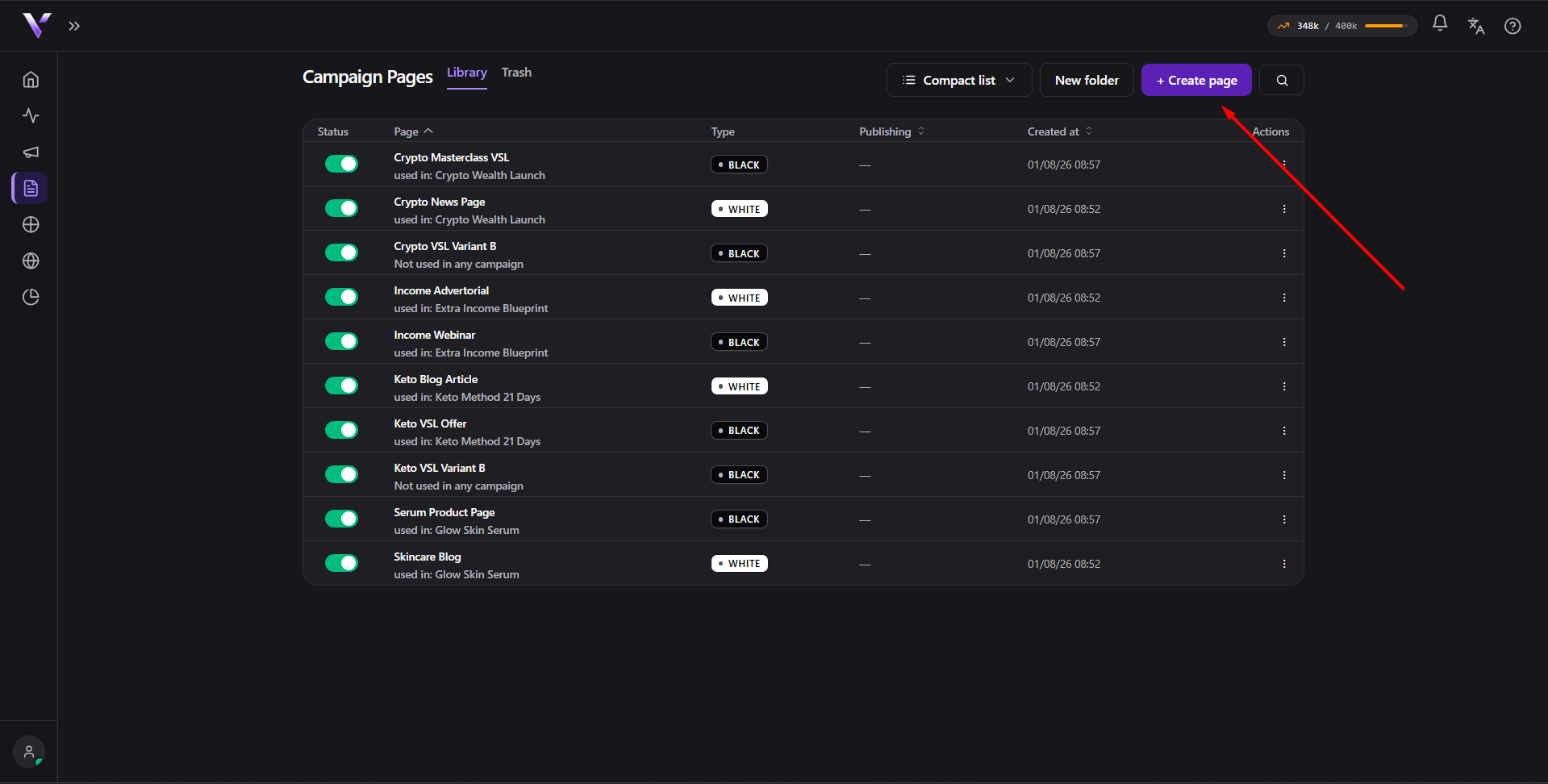
- A published page shows a green switch turned on. Click it to unpublish and take it down directly from the list.
- A draft page shows the switch turned off. Publishing isn't done from the list: open the page in the editor and click ✓ Publish there.
Before running a campaign, make sure both the White and the Black are published: an unpublished page is not served.
Trash
When you delete a page, it goes to the Trash instead of disappearing right away. In the trash you see the name, the type, the Deleted on date and the Days left until permanent removal (15 days from when it was deleted).
- Restore: returns the page to your list, as it was.
- Delete permanently: removes it for good (cannot be undone).
Once the retention period passes, pages in the trash are removed automatically.
Common issues
- "Can't delete: the page is in use by a campaign, funnel or A/B test. Remove it there first." Shows up when you try to delete (send to Trash) a page that's tied to a campaign, a funnel or an A/B test. Unlink the page from those first, then delete it.
- I deleted the wrong page. Go to the Trash and click Restore; it works as long as the days left haven't run out.
- A campaign stopped serving a page. Check whether it got unpublished (or deleted) by accident: turn it back on with the list's switch or restore it from the Trash, depending on the case.
Protect your campaigns with Vellar
Build the page and choose how to publish it: protected for paid traffic, or open for anything else.
See how it works