
Using the editor
Blocks, image swapping and how work is saved.
The visual editor is where you build and adjust the page, without writing code. You work with blocks (sections, texts, images, buttons) that make up the page:
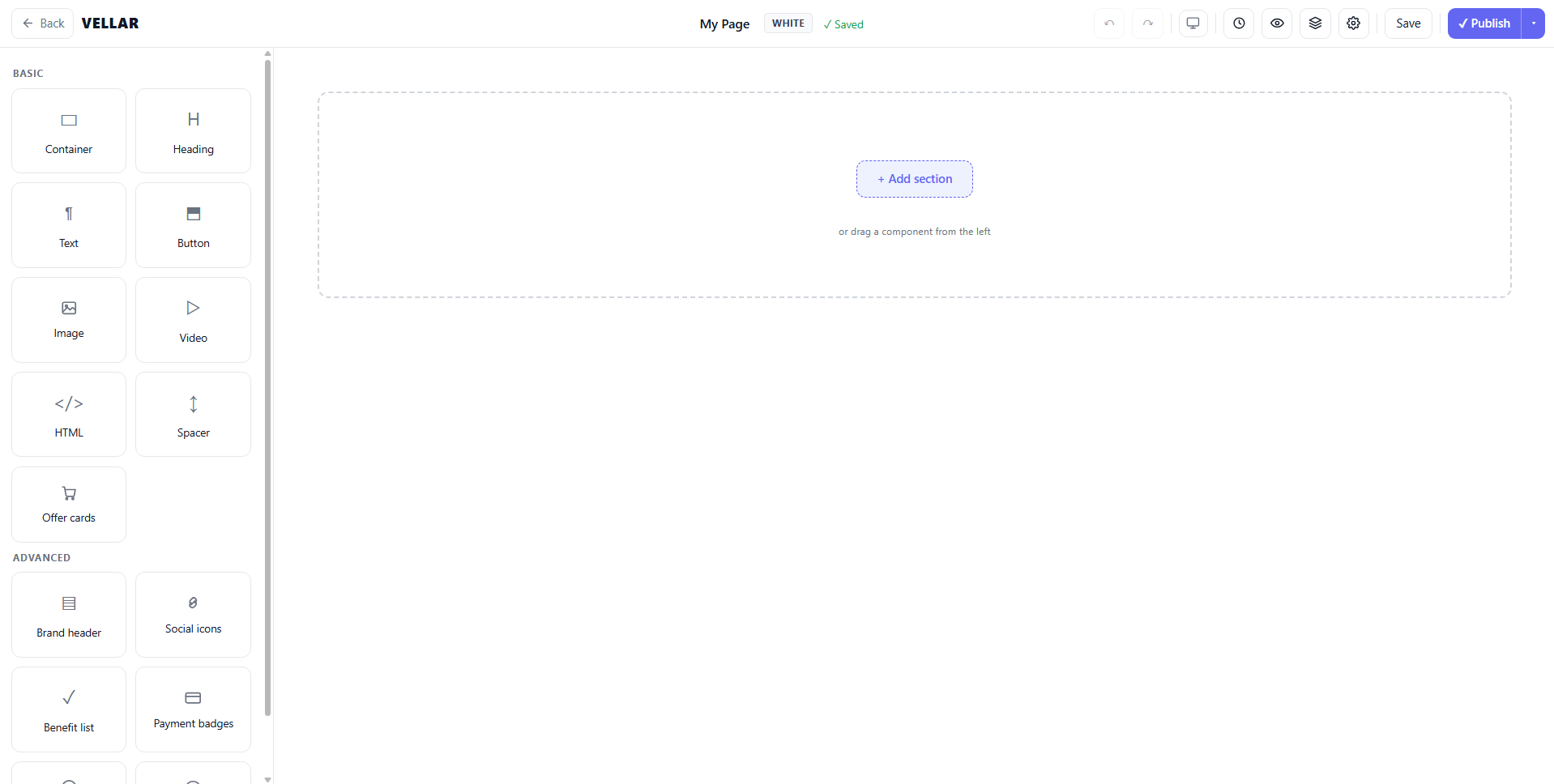
Editing content
- Click a block to select it and edit its content and options.
- Reorder, add or remove blocks to build the structure you want.
Swapping an image
To swap an image, select the image block and use the Replace image option to upload yours. The swap replaces only that image; the rest of the block stays the same. Always prefer your own images, especially on cloned pages (see Clone from a URL): external-link images that stop loading show up flagged in the editor, so you know they need swapping. The editor's own labels follow your interface language.
Saving
At the top of the editor, an indicator shows the state of your work: ✓ Saved, Saving… or ● Unsaved. To save, click Save or press Ctrl+S. If you try to leave with something ● Unsaved, the editor warns you before closing. Renaming the page and changing the page settings save right away.
Saving is not the same as publishing: the page only goes live after it is published, with the ✓ Publish button inside the editor itself (see Publish and Trash).
Common issues
- I uploaded an image and got "unsupported type". Only PNG, JPEG, WebP and GIF are accepted. Convert the image to one of these formats before uploading.
- I uploaded an image and got "file too large". The per-image cap is 5 MB. Compress the image (or export it in a lighter format, like WebP) and upload again.
- An image shows a "didn't load" warning on the block. Common on cloned pages: the image still points to the source site, which may have taken the file down. Use Replace image to upload your own.
Protect your campaigns with Vellar
Build the page and choose how to publish it: protected for paid traffic, or open for anything else.
See how it works