
Create a page
Start from scratch, from a template or by cloning from a URL.
In Pages, click Create page and choose the starting point:
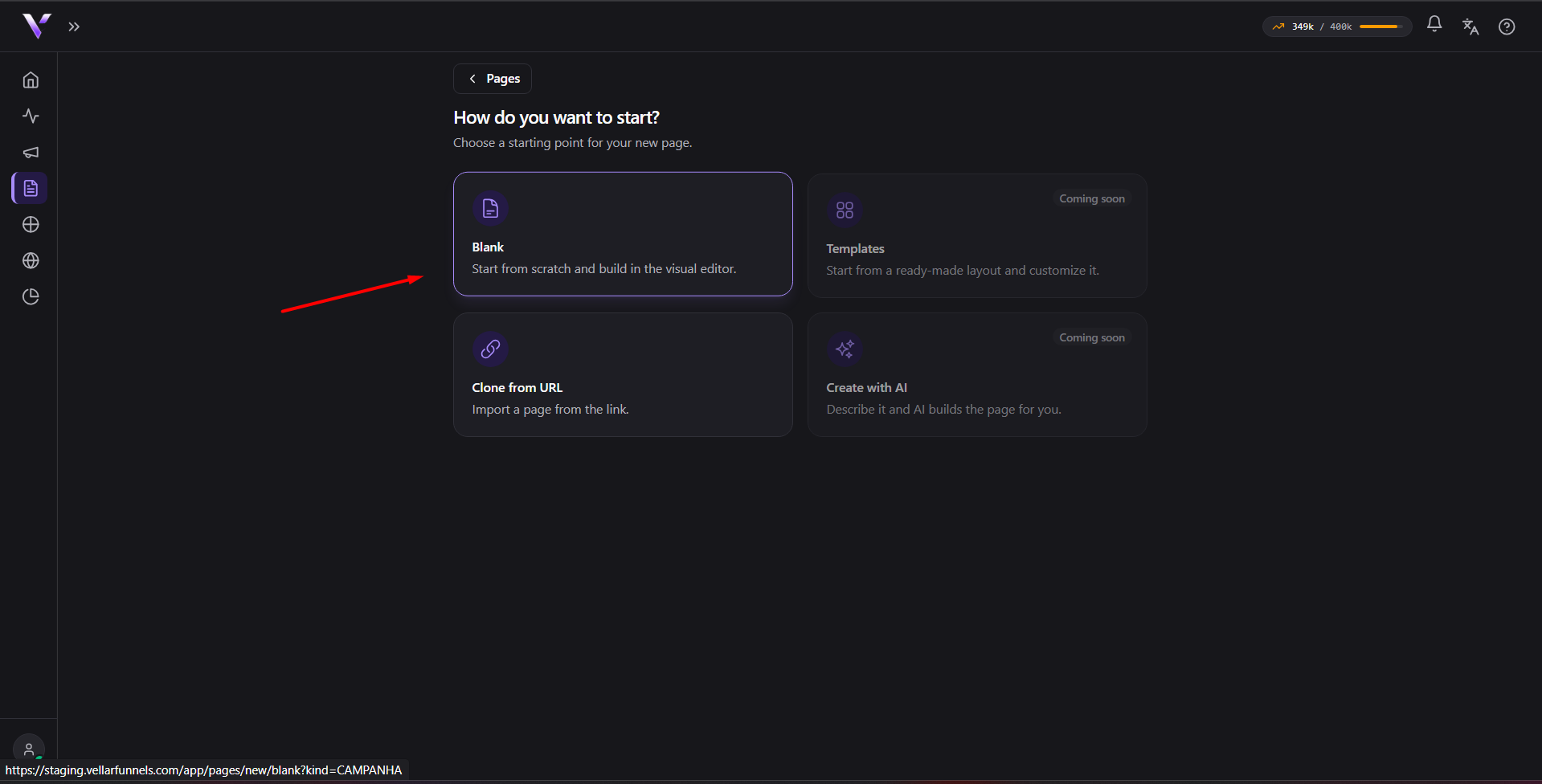
- Blank: start from scratch and build everything in the visual editor.
- Templates: start from a ready-made layout and customize it (coming soon).
- Clone from URL: import a public page from its link (see Clone from a URL).
- Create with AI: describe what you want and the AI builds the page (coming soon).
Name and role
When creating, you provide:
- Page name: how it appears in your list.
- Page role: whether it's the safe page (compliance/presentation) or the real offer. This role defines whether the page is available as White or as Black when building the campaign.
- Description (optional): a note to keep yourself organized.
Click Create and edit to open the editor. A newly created page is not yet published; publish it when you're done (see Publish and Trash).
Common issues
- "Templates" and "Create with AI" show a "Coming soon" tag and don't open. They're not available yet: today you can only start Blank or by Clone from URL.
- "Plan page limit reached." Shows up when you click Create and edit if you've already hit your plan's page cap. Delete a page you no longer use (it goes to the Trash, so you can recover it later) or upgrade in Plans.
- I left the "Page name" field empty and the page showed up in the list as "Sem nome". That's the expected fallback when the name is left blank. Note it shows up in Portuguese regardless of your interface language; rename it whenever you want (via the pencil icon in the list or inside the editor).
Protect your campaigns with Vellar
Build the page and choose how to publish it: protected for paid traffic, or open for anything else.
See how it works