
Export CSV
How to download the report data and which columns come out.
You can download the period's visits in a CSV file to analyze elsewhere (spreadsheet, BI, etc.).
How to export
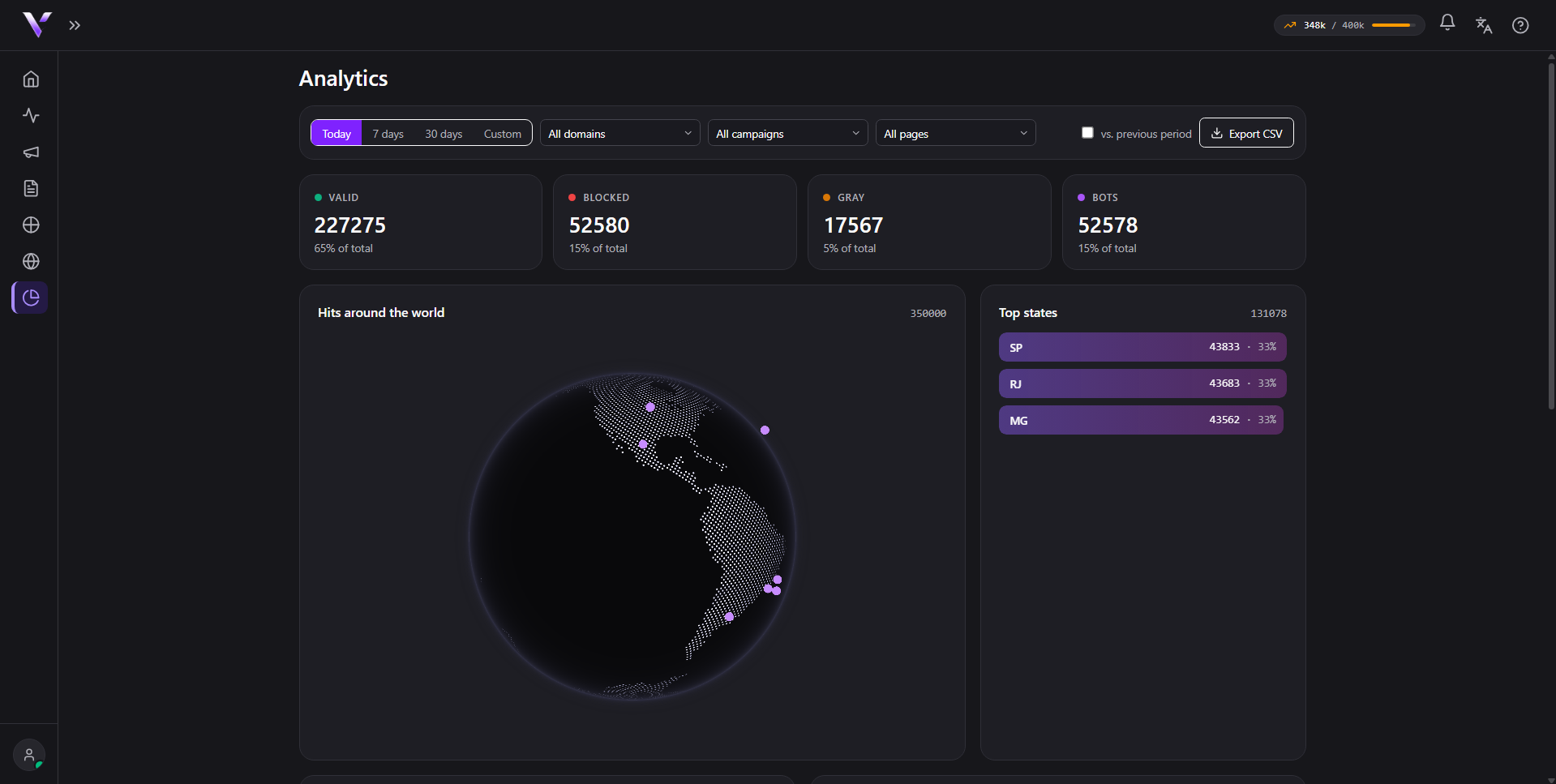
In Analytics, use the Export CSV button, next to the filters at the top of the page. The export respects the filters active at the moment (period, domain, campaign, page, state and device chosen through drill-down): the file brings exactly the slice that is on the screen.
What comes out in the file
Each row is a visit, with columns:
- timestamp: the date and time of the visit;
- campaign and slug: the campaign;
- page_type: the page role served;
- reason: the reason, in the same customer-facing label shown in the panel (see Block reasons);
- country, region, city: the approximate location;
- ip_hash: an anonymous identifier of the visit.
For privacy and security, the CSV does not include the IP in plain text nor internal detection details, only the reason label you already see in the panel.
Common issues
- The file came out with only the header, no rows. No visit matched the filters active at the time of download; widen the period or remove a filter before exporting.
- I turned on "vs. previous period" but the CSV only brought one period. The comparison is a dashboard visualization feature; the export always brings only the period set in the date filter, not the comparison period.
- The "reason" column doesn't match the code I expected. The CSV uses the same customer-facing label as the panel, not a raw internal code. See Block reasons to understand each label.
Protect your campaigns with Vellar
Build the page and choose how to publish it: protected for paid traffic, or open for anything else.
See how it works